Game list
Chromebook Games With No Download: 9 Free Browser Games That Just Work
Key takeaways
- Browser games run inside a Chrome tab, so a Chromebook needs no download and no installation to play them.
- The nine games here download 11.6 to 16.4 KB each, about 126 KB for all of them together.
- Every game works with the keyboard, the touchpad and a touchscreen, and saves progress in the browser.
- No sign-up, no purchases and no ads inside the game.
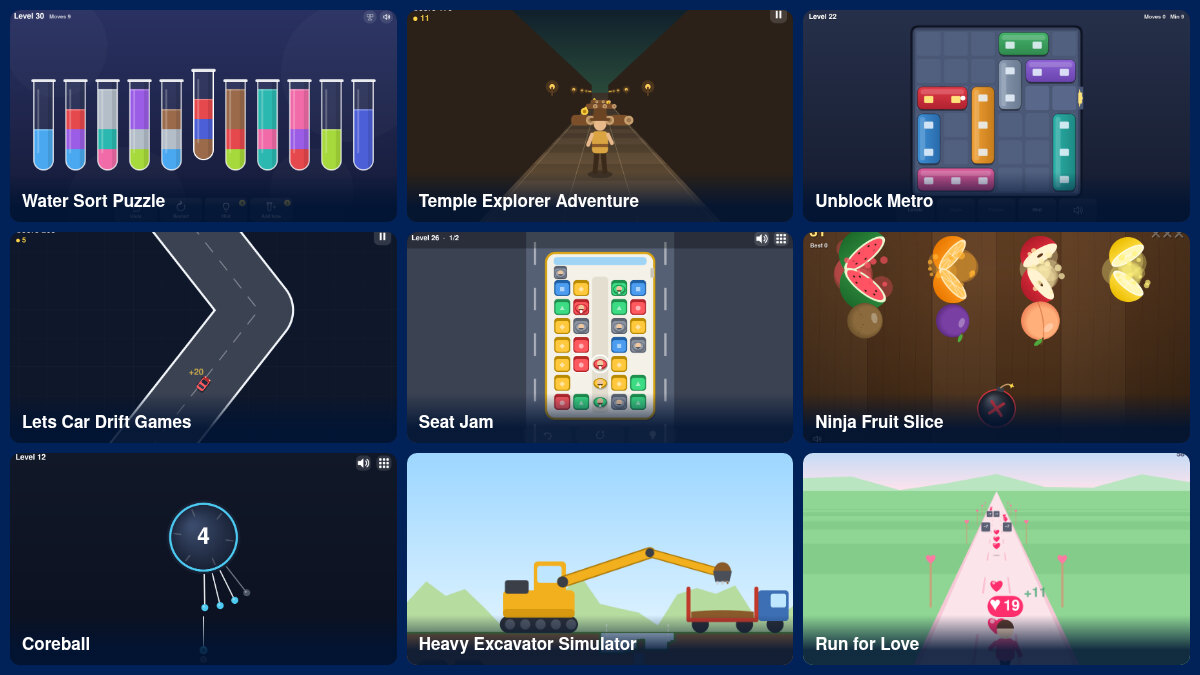
You can play games on a Chromebook without downloading anything. A browser game runs inside a Chrome tab, so there is nothing to install and nothing to store. The nine games below are ones we built ourselves. Each one downloads less than 17 KB, works with the keyboard, the touchpad or a touchscreen, and has no ads inside the game.
The 9 games at a glance
| Game | Type | Chromebook controls | Length | Download |
|---|---|---|---|---|
| Water Sort Puzzle | Color sorting puzzle | Click, or keys 1 to 9 and 0 | Endless levels, no timer | 15.3 KB |
| Unblock Metro | Sliding block puzzle | Drag, or Tab and arrow keys | 60 levels, no timer | 14.1 KB |
| Seat Jam | Seating puzzle | Click, or arrow keys and Enter | 40 buses, no timer | 15.7 KB |
| Coreball | One-key reflex game | Space, Enter or click | 60 short levels | 11.6 KB |
| Ninja Fruit Slice | Slicing arcade game | Hold and drag, or swipe on a touchscreen | Short rounds | 12.5 KB |
| Temple Explorer Adventure | Endless runner | Arrow keys or W A S D, Space to jump | Runs of 1 to 3 minutes | 12.5 KB |
| Lets Car Drift Games | One-button drift game | Hold Space, release to turn back | Runs of 1 to 3 minutes | 12.2 KB |
| Heavy Excavator Simulator | Digging simulator | Drag, or arrow keys and Space | 20 jobs, 1 to 2 minutes each | 15.4 KB |
| Run for Love | Collecting runner | Left and right arrows, or A and D | 30 levels, about 30 seconds each | 16.4 KB |
Download is the size of the game’s own files as they travel over the network. All nine together come to about 126 KB, less than a single phone photo. The page around the game adds its own weight.
Why browser games suit a Chromebook
A Chromebook is built around the Chrome browser, and a browser game is simply a web page that draws and listens to your keys. That makes the two a natural fit:
- Nothing to install. The game loads like any other page. Close the tab and it is gone.
- No storage used up. Many Chromebooks have little disk space. A game of 12 to 16 KB does not touch it.
- No account. You do not sign in, and the games do not ask for your name or email.
- Your progress stays. Levels, stars and best scores are saved in the browser on that Chromebook.
- Your language. Each game picks one of 11 languages from your browser settings.
The games, one by one
1. Water Sort Puzzle
Pour colored water from tube to tube until every tube holds one color. Click a tube and then the tube you want to pour into, or use the number keys. Undo is unlimited and every level has a solution. If you get stuck, our water sort tips show which pours cause dead ends. Play Water Sort Puzzle.
2. Unblock Metro
Slide the parked trains out of the way and drive the red metro to the exit. You can drag with the touchpad, or press Tab to pick a train and move it with the arrow keys. There are 60 levels and each shows the smallest number of moves it can be solved in. The sliding block strategy guide explains the method. Play Unblock Metro.
3. Seat Jam
Passengers stand in the aisle of a bus and each wants a seat of their own color. Nobody can pass anybody else, so the order decides everything. Forty buses, unlimited undo, and a hint when you need one. The Seat Jam guide has the rules that work. Play Seat Jam.
4. Coreball
A core spins in the middle of the screen. Press Space to shoot a pin into it without touching the pins already there. One key is all you need, and a failed attempt restarts at once. Sixty levels with five different spin patterns. Play Coreball.
5. Ninja Fruit Slice
Fruit flies up, you cut it with one swipe, and you stay away from the bombs. On a touchscreen Chromebook you swipe with a finger. With the touchpad, hold the button down and drag across the fruit. A round ends after three missed fruits or one bomb. Play Ninja Fruit Slice.
6. Temple Explorer Adventure
An endless runner made for the keyboard. Arrow keys or W, A, S and D change lanes, Space jumps, the Down arrow slides. A run lasts one to three minutes and gets faster all the time. Play Temple Explorer Adventure.
7. Lets Car Drift Games
A drift game with a single control. Hold Space and the car swings right, let go and it swings left. Long slides multiply your score, and leaving the road ends the run. Play Lets Car Drift Games.
8. Heavy Excavator Simulator
Drag the bucket of an excavator into the dirt, swing it over the truck and pour. The ground really gets lower where you dig. Twenty jobs of one to two minutes each. The arrow keys move the bucket and Space drops the load if you prefer the keyboard. Play Heavy Excavator Simulator.
9. Run for Love
Steer a runner left and right, collect hearts and pick the better of two gates: +5 or ×2, −3 or ÷2. Thirty levels of about half a minute each, and you cannot fail a level, only earn fewer stars. Play Run for Love.
Chromebook control tips
- Fullscreen. Every game page has a fullscreen button that fills the screen with the game. The Chromebook’s own fullscreen key, in the top row of the keyboard, makes the whole page take up the screen instead.
- Dragging with the touchpad. Click and hold with one finger, then slide. If that is awkward, open Settings, then Device, then Touchpad, and turn on “Tap and drag to move items”. Google describes the option on its touchpad help page.
- Touchscreen. All nine games accept touch. Tap and swipe exactly as on a phone.
- Arrow keys scroll the page? The game has lost keyboard focus. Click inside it once. The full explanation is in our guide to arrow keys that scroll the page.
- Sound. The M key mutes every one of these games.
School and work Chromebooks
A Chromebook from a school or an employer is managed by an administrator, who decides which websites open on it. We cannot change that, and this guide does not cover ways around it. If a game page does not open on a managed Chromebook, it will open on your own device at home.
What we can say about the games themselves: they have no chat, no sign-up, no downloads and no purchases.
Do these games work offline?
Not from a cold start. You need a connection to open the page. Once a game has loaded, it does not download anything else, so it keeps running if the connection drops. It will not load again until you are back online.
Other ways to play on a Chromebook
Many Chromebooks can also install Android games from the Play Store, and cloud gaming services stream large PC games into the browser. Both need an account, and they need storage space or a fast connection. Browser games need neither, which is why they are the quickest way to play something on a Chromebook.
All the games made by us are in Original Games.
How we measured the sizes
For each game we requested its two files, the page of the game and its script, the way Chrome does, with compression on, and added up the bytes that arrived. One KB is 1,024 bytes. Measured in October 2026.
Frequently asked questions
Can you play games on a Chromebook without downloading?
Yes. Browser games run inside a Chrome tab and need no download or installation. Open the page of a game and it starts.
Do I need an account to play?
No. The games on Yes This Game have no sign-up and do not ask for a name or an email address.
Is my progress saved on a Chromebook?
Yes, in the browser on that Chromebook. It is not copied to other devices, and it is erased if you clear the browsing data for the site. In a guest or incognito window nothing is kept after you close it.
Do these games work on a touchscreen Chromebook?
Yes. All nine games accept touch as well as the keyboard and the touchpad.
Will these games open on a school Chromebook?
That depends on the school. A managed Chromebook opens only the websites its administrator allows, and we cannot change that. The games have no chat, no sign-up, no downloads and no purchases.
Are there ads in the games?
The games we make have no ads inside the game. The site is free and is paid for by the ads shown on the page around the game.
Why do the arrow keys scroll the page instead of moving my game?
The game does not have keyboard focus. Click inside the game once, or use fullscreen. Our guide to arrow keys that scroll the page explains why it happens.